One of my favorite workflows reminds individual of their Open Tasks. It is easy to set up an alert to remind you about open tasks. That said, if you have 20 overdue tasks, the out of the box reminder will send you 20 separate emails. Instead, you can set up a workflow to send ONE email with a table listing the 20 overdue tasks.
Reminder Email Workflow Step-by-step
Step 1 – Trigger
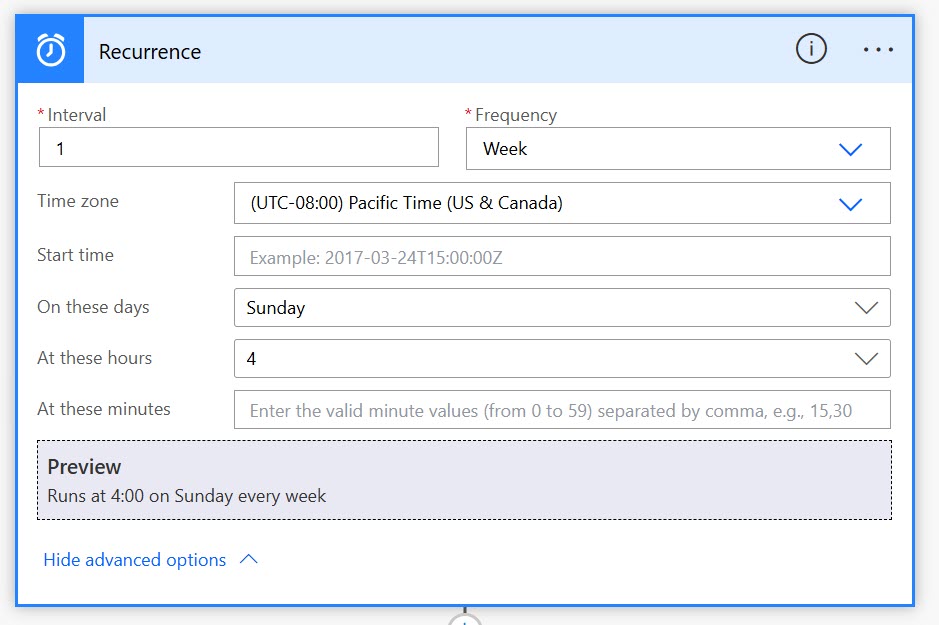
My workflow runs weekly, so I start with a Recurrence trigger. This is set to run at an Interval of 1 Week on Sunday at 4:00 a.m. Pacific.
Step 2 – Get the SharePoint list items
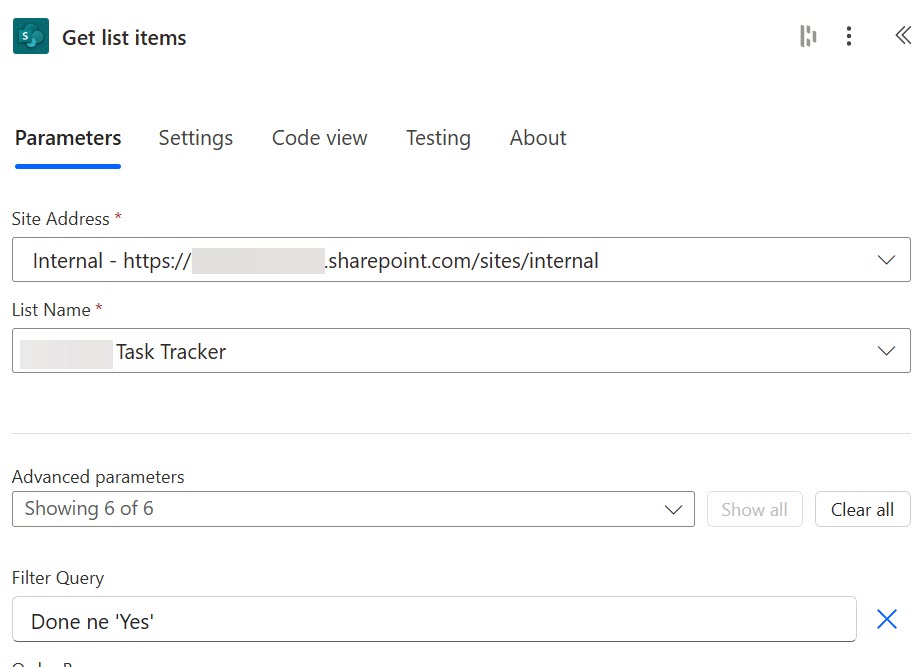
Add a SharePoint Get list items action.
Choose your Site Address and List Name.
Set a Filter Query
Get only items that are not yet done by using a Filter Query. The column in my list is named Done and the values are either Yes or No.
In this example the Filter Query is Done ne ‘Yes’.
- Column Name = Done
- Condition = ne (not equal to)
- Value = ‘Yes’ (in single quotes)
Resource:
Step 3: Get the email addresses for each task
Add a Select action.
Note: In the Select action Switch to text mode instead of key values.
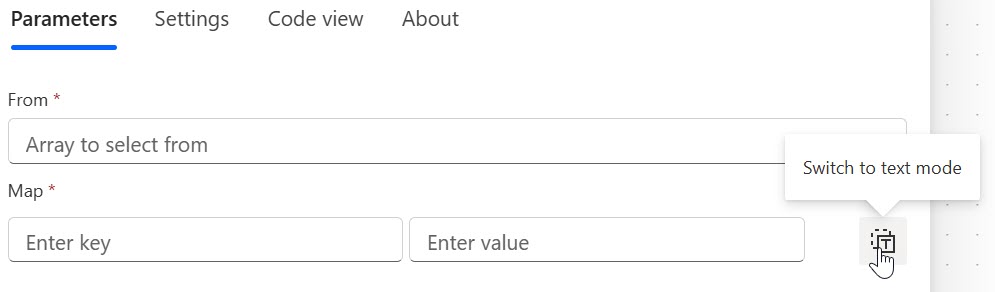
For the From field use the dynamic picker to get the body/value from the Get list items step.
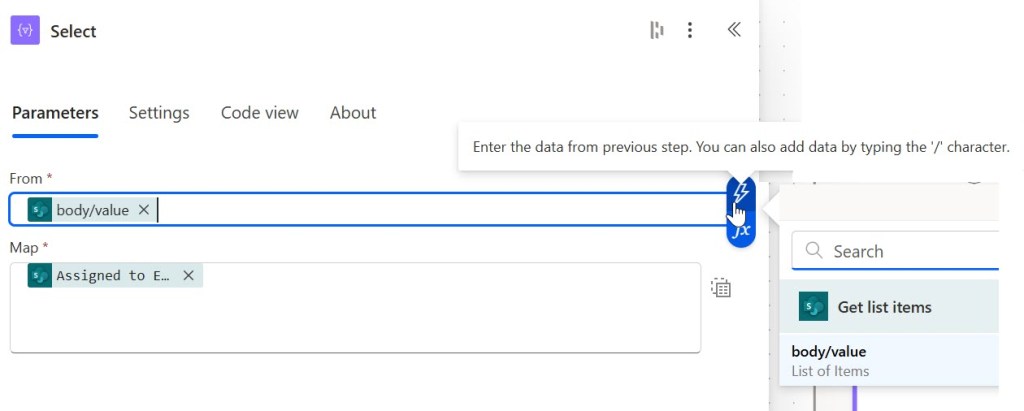
Choose Assigned to Email for the Mapped property.
Step 4: Get the unique users from (Assigned to)
Add a Compose step. Name it Compose – get unique users
Use the Expression creator to set the Input to:
union(body('Select'),body('Select'))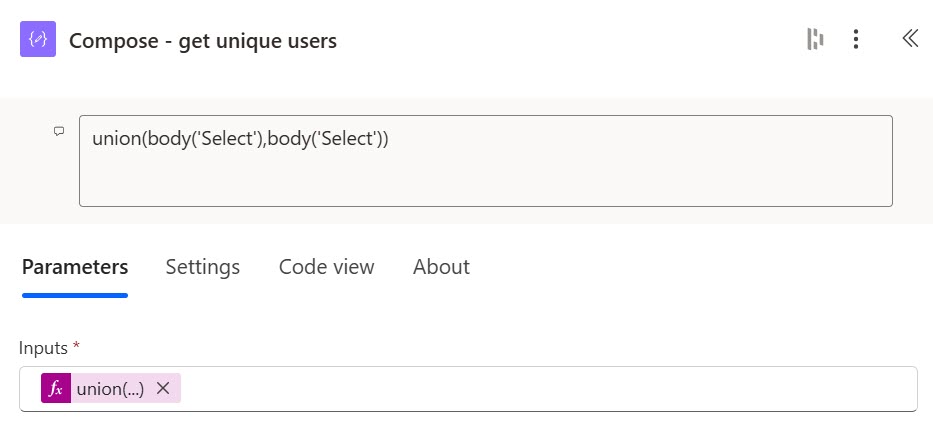
Step 5: Process the list of unique Assigned To users
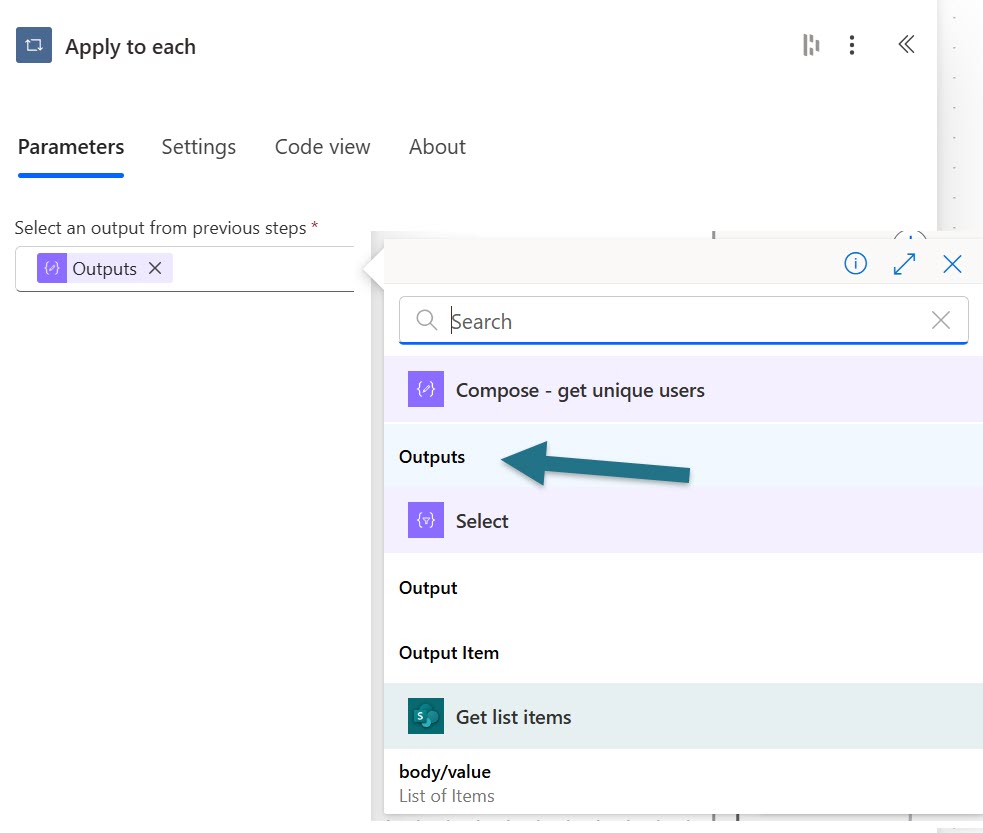
Add Apply to each action. Set the output value to the Compose step (Step 4) to get unique users.
Step 6: Filter the list of emails
Add a Filter array Data Operation action.
Set the From to the Get list items
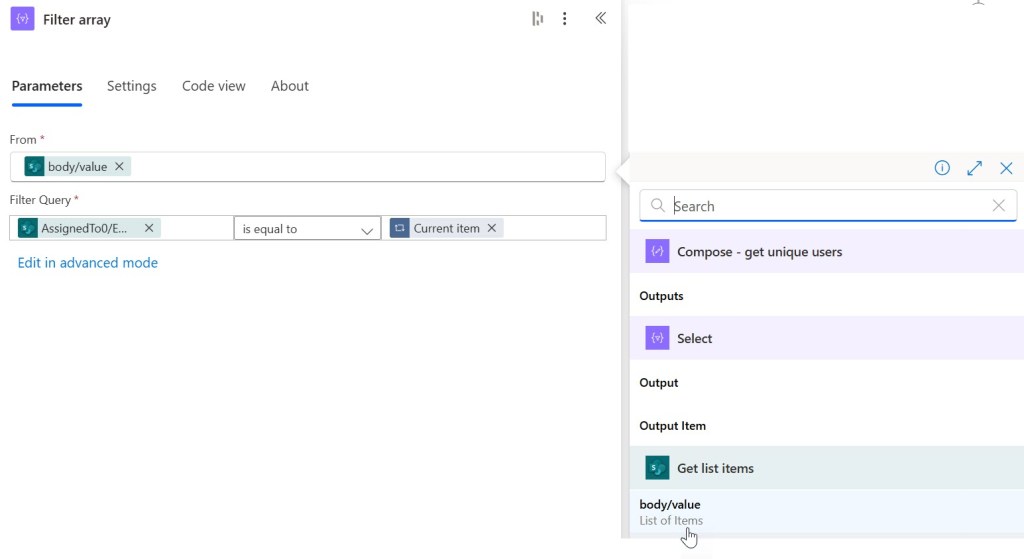
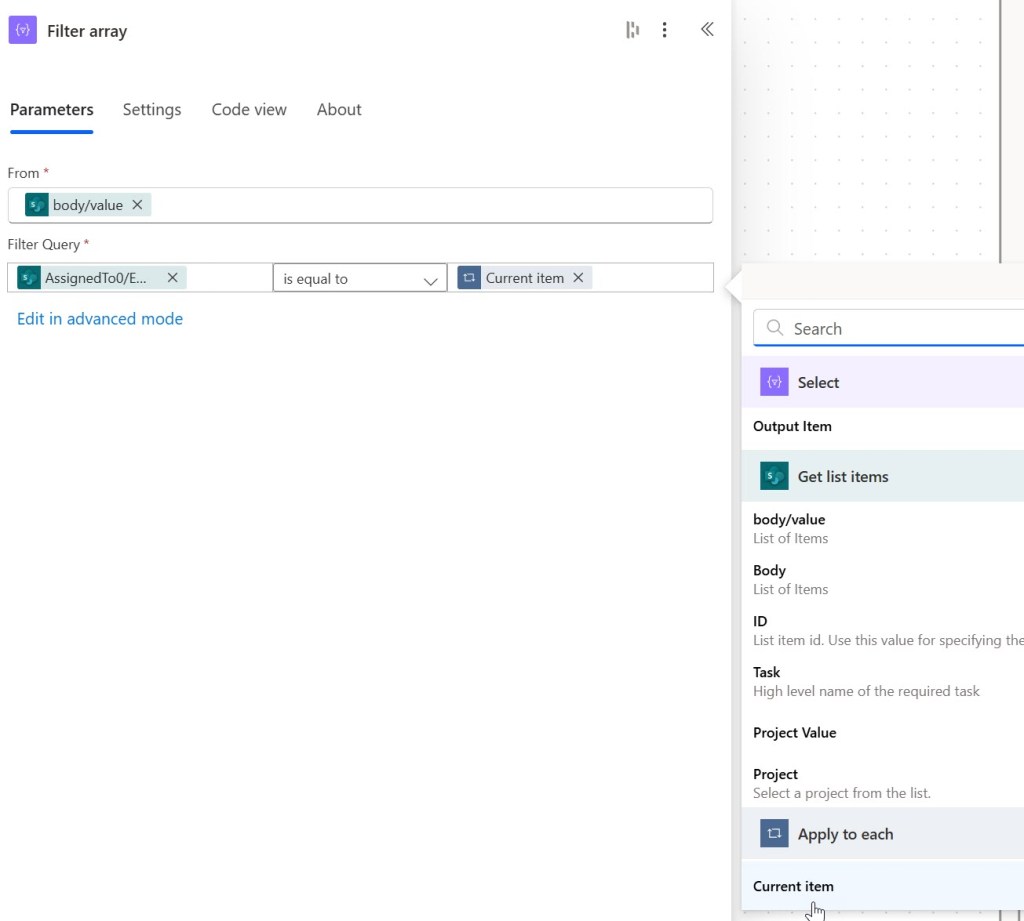
Set the Filter Query to the AssignedTo/Email field from your Get list items. Set the condition is equal to. Set the field to Current item from the Apply to each step (Step 5).
Step 7: Add a Style block to style your email message
This step is optional; however, I like a nicely formatted email message.
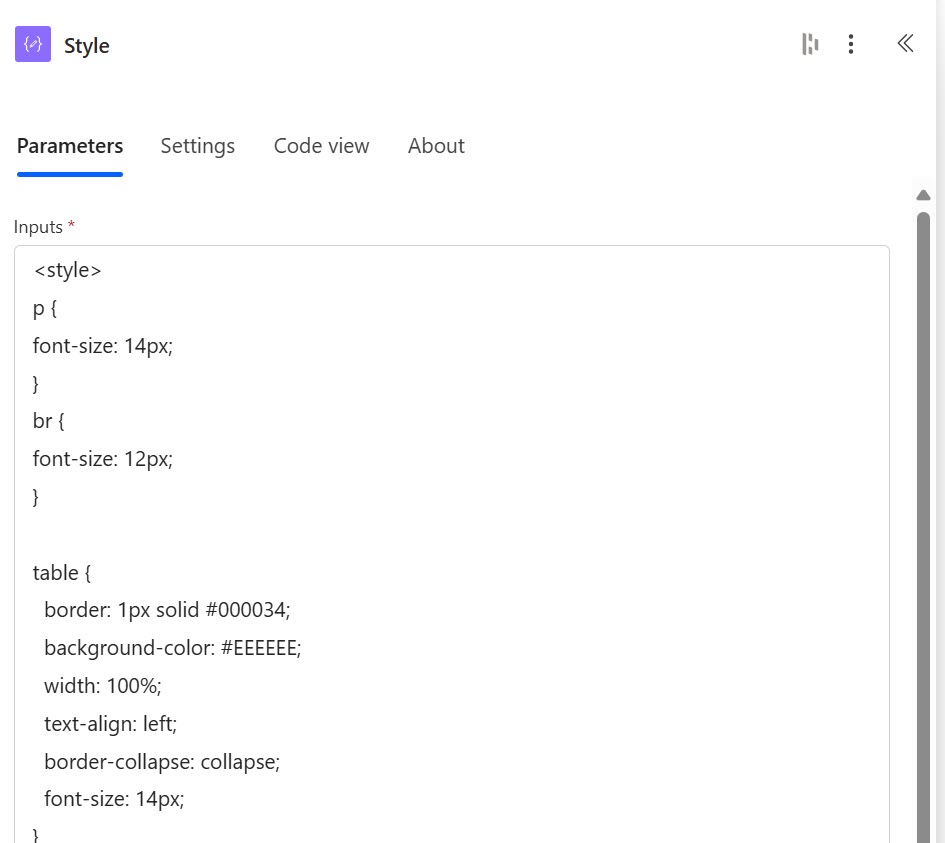
Add a Compose action and name it Style. Copy and paste the Style CSS below into the Inputs.
<style> p { font-size: 14px; } br { font-size: 12px; } table { border: 1px solid #000034; background-color: #EEEEEE; width: 100%; text-align: left; border-collapse: collapse; font-size: 14px; } table td, table th { border: 1px solid #000034; padding: 3px 2px; text-align: left; } table tbody td { font-size: 14px; } table thead { background: #1C6EA4; border-bottom: 2px solid #000034; text-align: left; } table thead th { font-size: 15px; font-weight: bold; color: #FFFFFF; border-left: 1px solid #D0E4F5; text-align: left; } table thead th:first-child { border-left: none; } </style>
Step 7: Create your HTML table
Add a Compose action, name it Create HTML table
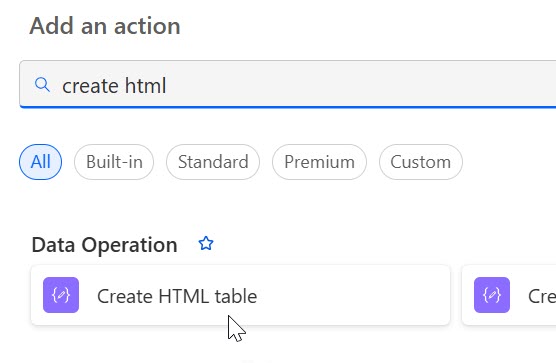
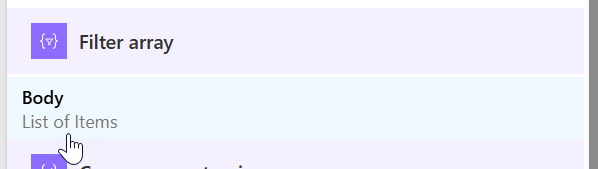
For the From field, select the Body > List of Items from the Filter array.
For the Columns, choose Custom to allow you to define the columns you want to include in the table of the email message.
In my case I want to display the Task, Due_Date, and Description.
Note: Your table headers can’t include spaces. In my SharePoint list, my field is DueDate, but in the table I want it to be separated, so I’ve set that Header to be Due_Date.
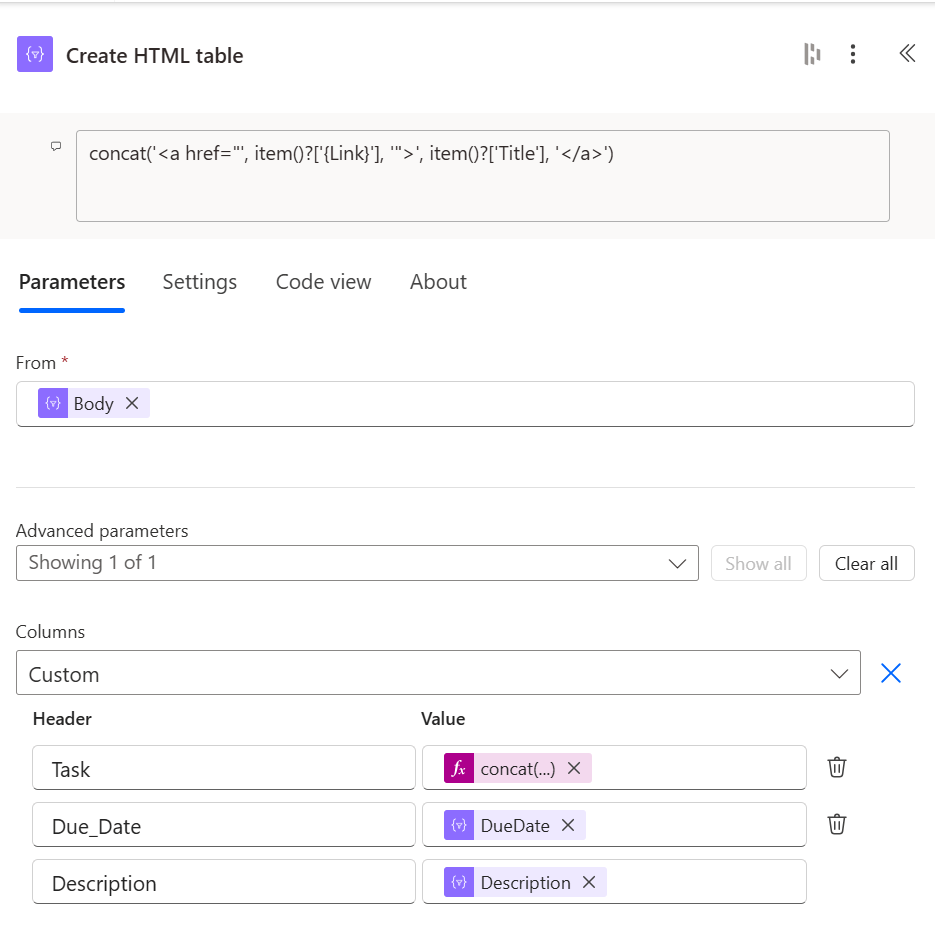
For the Task (field name Title) field, I’ve made it a link to the item in the list, I’m combining an HTML href for the link and set it to display the Title field.
concat('<a href="', item()?['{Link}'], '">', item()?['Title'], '</a>')Step 8: Send the email
Add a Send an email (V2) step to send the email to each person who has open items.
Set the To field to the Current item from the Apply to step.
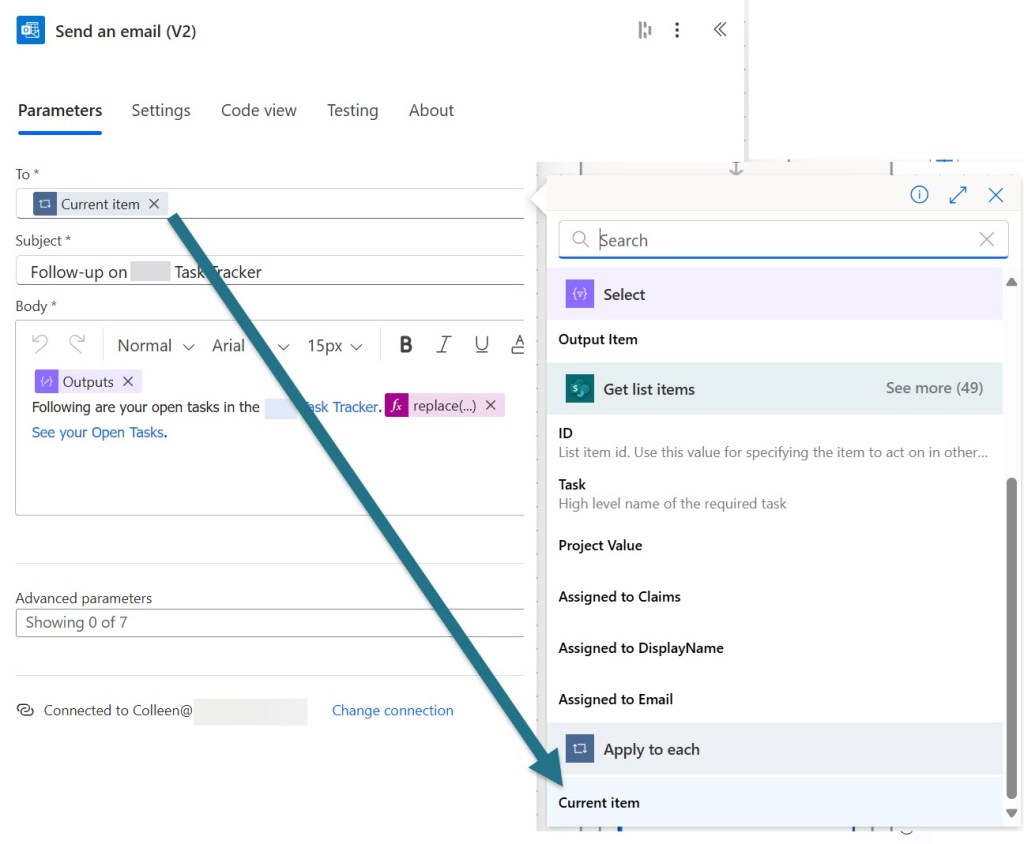
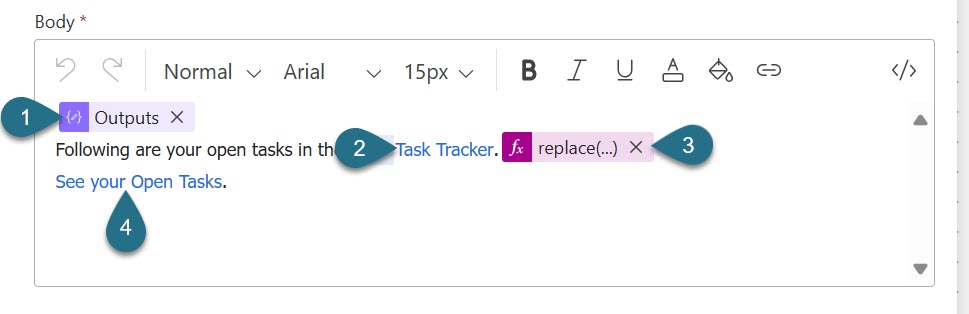
For the Body of the email I’ve added the following:
- The Outputs of the Compose step for the Style of the message.
- A link to the full Task Tracker SharePoint list.
- The table of Open Tasks. (see the HTML for the table below)
- A link to the “My Open Tasks” view in the list.
Building the HTML table
In order to build the table for each open task in the SharePoint list, you need to use a replace expression. Using replace ensures that your HTML content is consistent and standardized for the table.
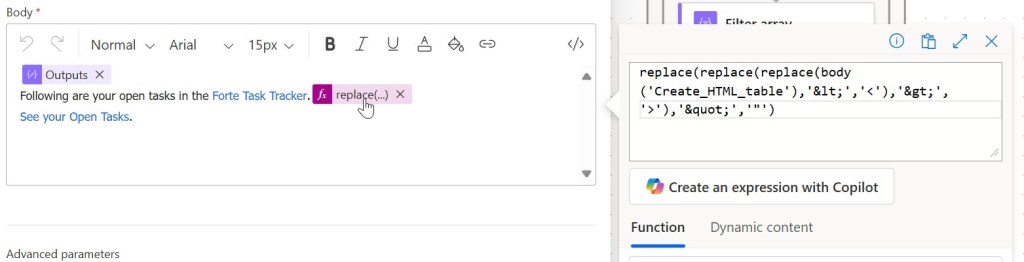
Here is the code to place in an expression:
replace(replace(replace(body('Create_HTML_table'),'<','<'),'>','>'),'"','"')The Weekly Open Tasks Email
This is an example of the email the “Assigned To” individuals receive each week.
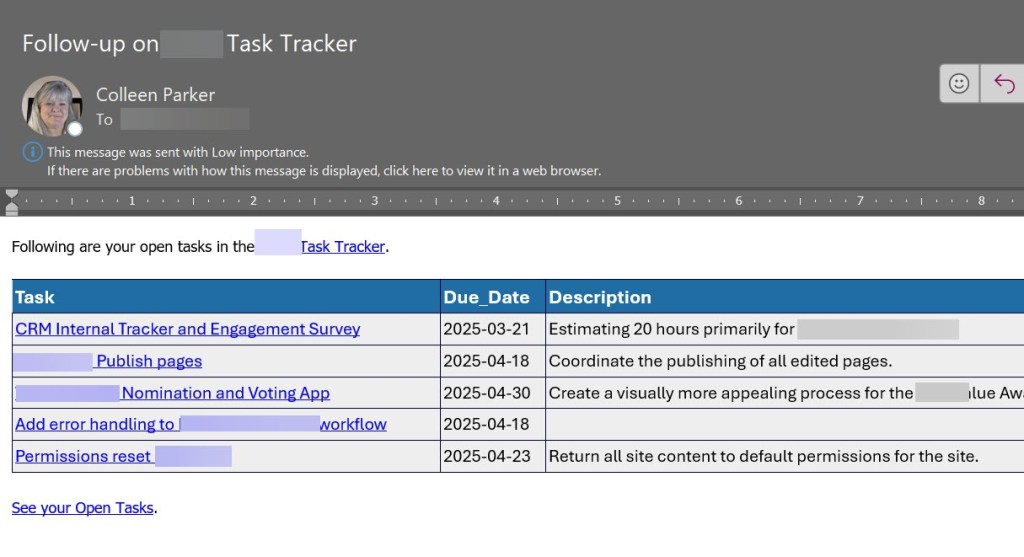

 Eyes on M365
Leave a comment